General Reporting
Users with an officer role or Super Admin access can use reports to search, filter and manage the records they have permission to access.
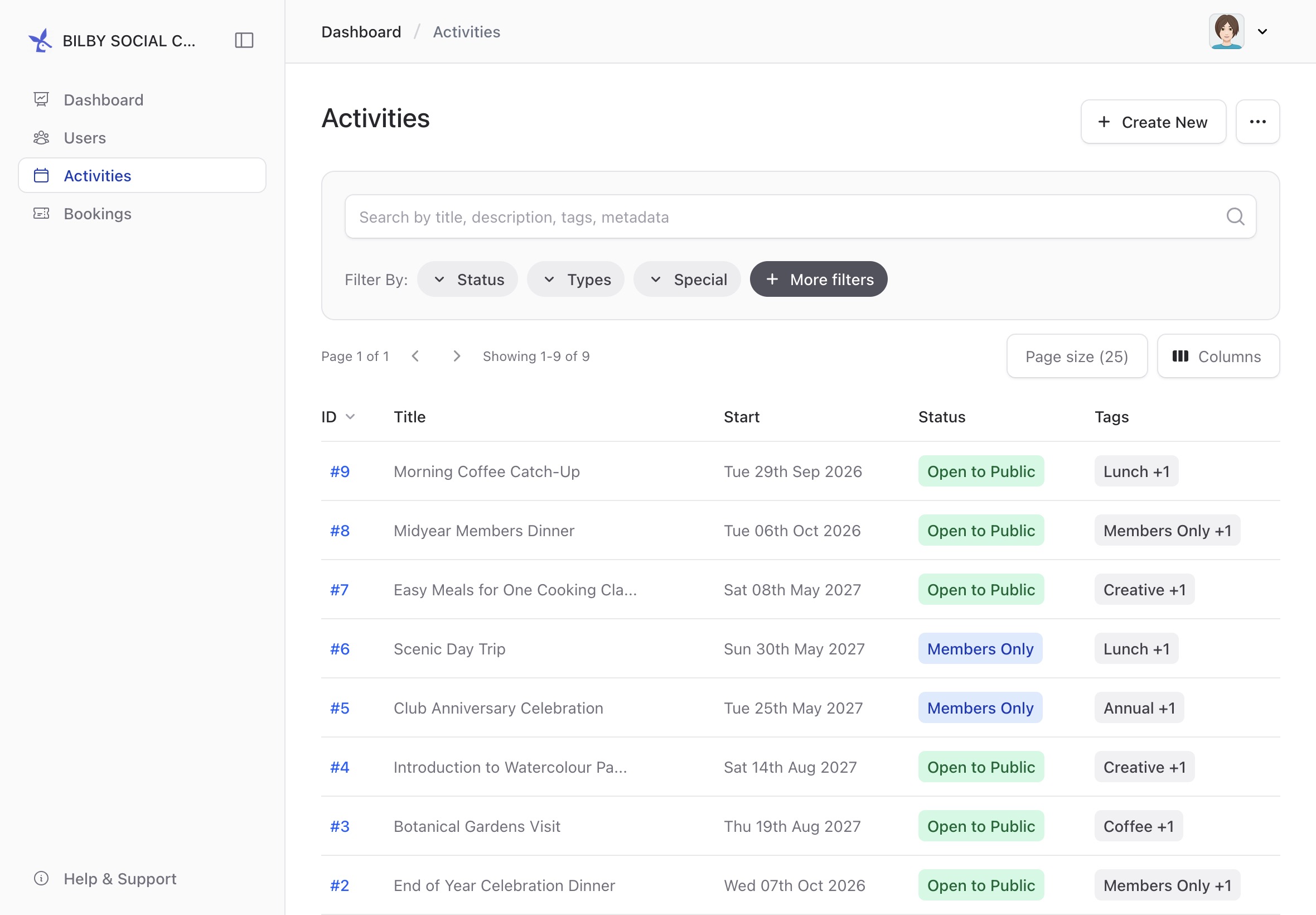
To access reports, select Account in the top-right corner of any screen, then select Administration. The sidebar shows the reports available to you. For example, an Activity Officer may have access to Activities and Bookings reports.
Search and filter records
Report pages provide a quick search field for finding records using commonly searched fields. The fields included in the search depend on the type of report. For example, the Activities report searches activity titles, descriptions, tags and metadata.
Report pages also provide filtering options to narrow down the records shown. Common filters are available directly on the report, while additional filters can be accessed by selecting + More filters.
The additional filters can also include comparison operators, allowing you to create more specific searches.

View archived records
Some records in Bilby can be archived, deactivated or deleted. These records are separated from active records and are not available for normal use.
Archived records can be viewed from reports by selecting the Special filter and choosing Archived. Archived records are displayed with a red tint to make them easier to identify.

Export report data to CSV
Report pages can export the records and columns currently available in the report to a CSV file. This can be useful when you need to work with report data outside Bilby.
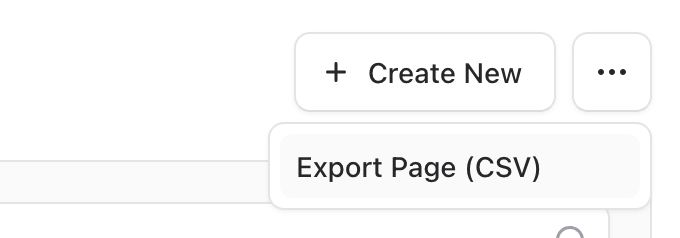
To export a report, select the ellipsis button in the top-right corner of the report and select Export to CSV.